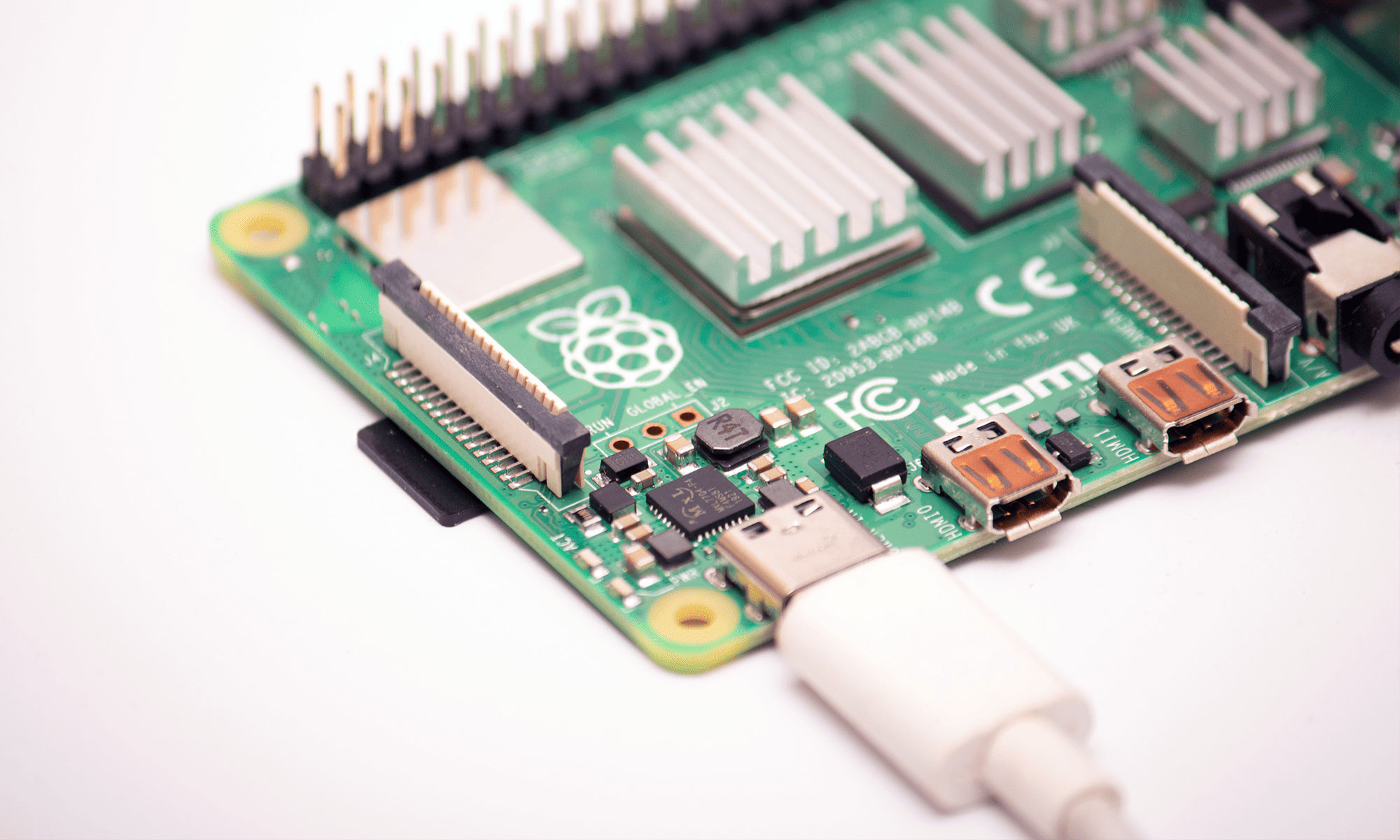
Linux commands for Raspberry Pi, that you need to know
Linux commands for Raspberry Pi, that you need to knowDate of publication: 07-05-2025 🕒 23 min read
The beginnings of working with the Linux console are not easy - the commands seem mysterious, unintuitive, often even intentionally confusing... But this is only a pretense. Here's our little introduction to operating Raspberry Pi and Linux using the terminal.
Among laymen, the view persists, that Linux is very difficult to use. Often and erroneously, this becomes the reason for reluctance to start working with the Raspberry Pi. So, let's answer three questions right away:
To operate Linux you need to know a thousand commands,is that right?
Not true, you only need a few dozen of the commands described below to accomplish most tasks.
Linux commands are confusing and unreadable, is that right?
Not true, for the most part they are simply abbreviations, no more complicated than KFC or USD.
Linux requires advanced knowledge of computers, is that right?
Not true, the system has a built-in, detailed user manual and a helpful community.
The myth of Linux's inaccessibility stems from the fact, that the system has been superbly optimized, but in terms of performance, remote access and working on minimalistic devices. This is in contrast to the philosophy behind Windows, Android or macOS, with which we interact every day. There processor computing power and memory resources are quite freely consumed (even squandered), to provide the user with an impressive, graphical interface, which (at least in theory) translates into intuitive operation of the system.
Linux has the same functionality, as its commercial brethren, but by design it can run on devices, whose design does not provide for connection of a monitor or keyboard at all. To operate Linux all you need is a communication port, such as. ethernet port or a serial UART interface, and a terminal program running on external hardware (it can be a laptop, smartphone, tablet, etc.). The interaction with the system will be analogous to the Raspberry Pi OS Lite version. After booting up, we will only see the command line on the monitor. We can also call it in the Linux graphical environment, by selecting the console program from the boot menu.
So: in front of us is a black console screen, prompt and an impatiently blinking cursor... what next?

In this article, we answer a question such as:
- How to get started with the Linux command line?
- Where to look for information about commands?
- What are the basic Linux file system commands?
- How to filter and sort data?
- Which commands are used to handle folders?
- Who is root and what does "sudo" actually mean?
- Why are system users assigned to groups?
- What's the deal with permissions in Linux?
- How to monitor processes and manage services?
- How to diagnose network interfaces and download files from the Internet?
First steps
Let's start with the command, which requires no additional knowledge of Linux.
date (literal.)
The date command returns the current date and time of the system in response.
However, in addition to its primary function, like most console commands, offers much broader capabilities. For example, it gives the time in a specific location. To do this, we place a parameter indicating the time zone before the command (time zone), region and city (e.g. TZ=Europe/Kyiv date).
Here we also have a choice of date and time format. It is imposed by adding to the command plus sign and a string of characters filled with placeholders. There are more than a dozen of them, e.g. %H means hour, %M a minute, %S a second.

Terminal commands and information retrieval
As you can see, all the art is in knowing the commands and getting used to working in text mode. But let's start at the very beginning by making life easier for ourselves.
clear
The clear command is used to clear the terminal, which sometimes fills up with hundreds of lines of text and is difficult to navigate (even using the side slider, which will not always be available). Some novice users are afraid of "losing" the progress of their work, but this is completely unnecessary stress, because
history
We don't have to remember all the commands, that we last typed into the terminal. Nor do we have to retype them in case of a typo. By pressing the up arrow, to recall the last command used. Pressing the arrow again, to recall the previous one, an even earlier one, etc. If we happen to be looking for a command used some time ago, we can always use the history command, which will display a list of all commands from a given session:

alias
Another useful shortcut, which proves helpful when performing complex operations, is aliasing, that is, creating your own command, behind which lies a more complex operation. All you need to do is to provide an alternate name and (in quotes) a string of the command, which will be called. For example alias kyiv="TZ=Europe/Kyiv date " will make the, that every time, when you type "kyiv" the console will respond as, as if it received the full command.

help
We have already mentioned, that even the simplest Linux commands, such as date, have extensive functionality. We access their full capabilities by using switches/options and parameters.
The question arises: how to know, what options a command offers and how to use them? Do we have to search for command information on the Internet every time? Rest assured. All commands in Linux are documented, and the documentation is contained in the system. The easiest way to get information is to add a switch --help after the command name.
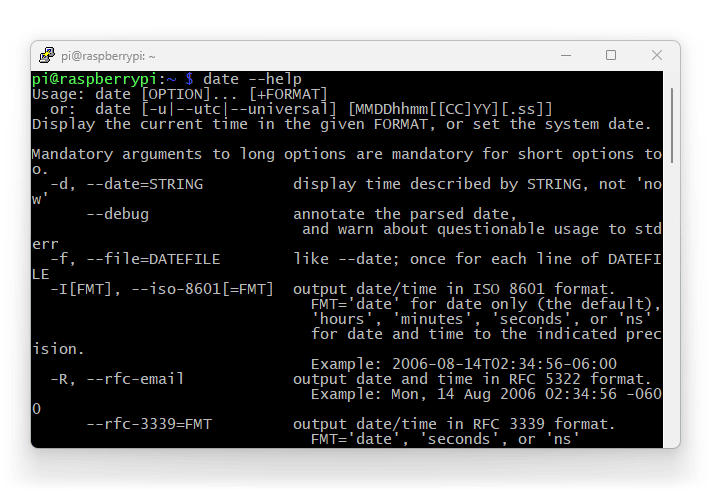
As you can see, this way we will find out, what the command is used for and what syntax it has, what options/parameters it takes, etc.
man (manual)
Even more detailed information about Linux commands is available in the built-in instruction base (manuals). We display them, by typing man and the name of the command you are interested in, e.g. man date.
To exit the program (by default it fills the entire terminal window) we press q. It is worth noting here, that most console programs are interrupted and closed by pressing q, combination Ctrl+C or Ctrl+X.
It should also be noted, that the knowledge base contained in Linux manuals far exceeds the description of a few commands, also includes information about C language functions, naming conventions, etc. If you ask, literally, for an instruction for an instruction (by typing man man) we will see m.in. list of sections, into which the help resources are divided:

apropos
If we want to search the information base for a specific issue, we can use the apropos command (from the French phrase á propos). The system will give us a list of all related entries found in the database (the number in parentheses indicates the section number):

uname (unix name)
If you access the device remotely, such as. via LAN, and we do not know much about its construction, nor the system version, the information can be obtained using the uname command. In the form without additional options it will show us only the name of the system (Linux), but after typing uname-a (from all) we will learn about: kernel name, the name of the network resource, kernel version and its release date, the processor (in the case of Raspberry Pi, it will be any version of ARM) and the name of the operating system (GNU/Linux).
About the folder structure in Linux
We will run out of space here, to fully describe the Linux file system - especially, since a file here can be, for example. a symbolic representation of a computer component, interfaces, etc. However, before we move on to commands concerning operations on files and folders, we should at least have a cursory look at this structure. In the basic branch of the file system we will find the following folders:
- / - the main folder (root directory), in contrast to the order known e.g. from Windows "/" does not refer to physical memory, represents the lowest level in the symbolic structure (each disk or memory has its place in the corresponding subfolders, about which in a moment)
- /bin - from binaries, that is, a folder of basic binary files (programs) required by the system and available to users
- /boot - files needed to boot (booting) system
- /dev - the place, where the symbolic representations of devices (devices), such as disks, interfaces, memories, etc.
- /etc - often read as Latin et cetera, although the function of this directory is better explained by the English phrases everything to configure or editable text configurations, because it is used to store editable configuration files
- /home - a place to store local files belonging to individual users, each has its own subfolder, the contents of which (unless the user has administrator privileges) are limited to his/her privileges
- /lib - storage location of libraries (libraries) required by programs placed in the /bin and /sbin folders
- /lost+found - when the system will be booted after a power failure, any corrupted (unsealed) files will be placed in this location
- /media - mount location (mount), i.e. making available for system use, external file systems, such as. the contents of a USB-connected portable memory stick
- /mnt - while in the "/media" folder external file systems are mounted automatically, mnt (mount) is allocated as a place of operation for the system administrator
- /opt - optional (optional) software packages, primarily not coming from official sources, experimental, etc.
- /proc - the contents of this folder are exclusively files representing processes (processes) and system functions
- /root - files owned by the administrator, called in Linux root-em (the administrator does not have its own place in the "/home" folder)
- /run - storage space for temporary data used/accessed by running processes (run-time)
- /sbin - from system binaries, i.e. programs critical to the operation of the system, accessible only to the administrator
- /srv - storage space for data used by services (services)
- /sys - this folder contains ordered, virtual representations of device, controllers and system kernel components, which makes it easier for the administrator to monitor device performance
- /tmp - temporary (temporary) files created by any software, this data is periodically deleted (e.g. during system reboot)
- /usr - storage place for optional programs required by users (users), rather than the system (as opposed to /bin and /sbin)
- /var - folder, where variable (variable) software components, e.g. logs, diagnostic data, files created by databases
File system navigation
Navigating the file system is a basic skill, the mastery of which will help us feel more confident in the Linux environment. While there are a number of tools to make exploring easier, copying and other file operations, knowledge of commands often turns out to be indispensable, especially when creating your own scripts.
pwd (print working directory)
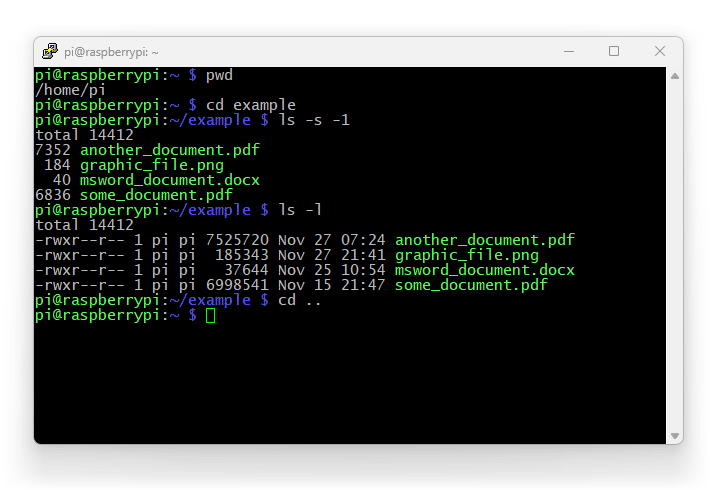
When navigating the file system, we move between folders - the place, where we are currently located is called the working directory. To recall our current location we use the pwd command.
ls (list)
The ls command is used to display a list of files and directories in the current location. The options of this function give various methods of formatting the output, e.g. ls-1 has the effect of presenting the list in a single column, and the switch -s (size) adds the size of individual files (in kB, which can also be changed). Even more complete information about the contents of the directory will be obtained by typing ls -l (long).
cd (change directory)
To move between folders, we use the cd command, followed by the name of the folder, to which we want to move. If it is a subfolder of the working directory, it is enough to enter its name. It is also possible to move to any place in the file system. Then you need to enter the full path, e.g. cd /home/pi/. If you want to go one level higher in the Hierarchy, e.g. from /home/pi directory to /home, you should type cd .. - it is important here to leave a space between the command and two dots.
df (disk free)
In order to obtain information about mounted file systems, we can use the df tool. It will indicate, in which location we can access the connected memory (sD cards, uSB sticks, hard drives, etc.), as well as it will give the amount of available and occupied space on each of the media.
find
The find command is used to find files and folders. This is the simplest method of locating resources. After the command, we can specify the initial path (the system will also take into account subfolders). Next, we use the name switch-name, after which we enter the search string from the item name. Using the star, we indicate any part of the name. So if we are interested in a list of all PDF-in your home folder, we will use the command *find /home-name.pdf.
Filtering and sorting
At this point we are ready to move on to complex operations, i.e. combining commands. To make things easier, let's start with a few useful functions, which we will then combine into one longer command.
cat (concatenate)
The cat command rewrites (concatenate) the contents of the file and displays it as text in the terminal. Thus, if we want to look at the names file.txt, it is enough to type cat names.txt.

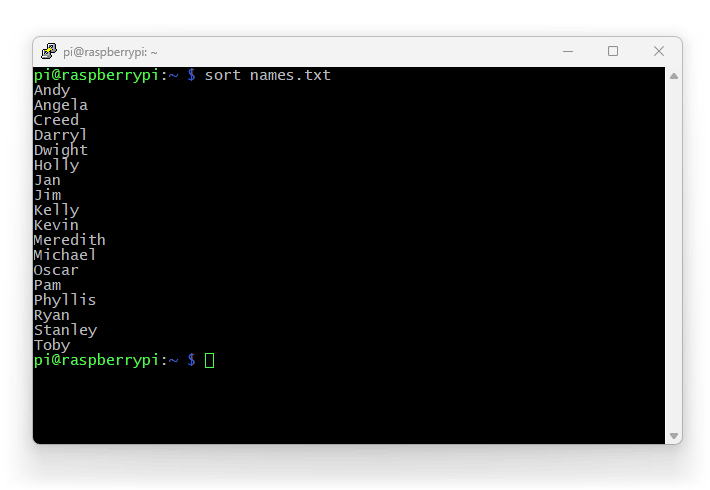
sort
As the name suggests, this command sorts the data (by default by alphabet). We can do this, by pointing the program to a specific file, e.g. sort names.txt. Let's notice, that the content is identical as above, only the order changes:
grep (global regular expression print)
Regular expressions (regular expression) is a powerful tool to help tame voluminous tranches of data. In computer science, it allows you to search for specific phrases, generalized structures, etc. In the case of the Linux console, regular expressions are most often used for rather trivial tasks, such as. filtering lists. To do so, we give the command the desired string and a set of data to search (here it will be the file names.txt). If we want to find all items of the list, where the combination of letters "an" occurs, we type: grep an names.txt. We can also use other, more complex expressions (expression), thanks to which we will find instances containing e.g. one of two phrases. For searching strings "an" OR "ly" the command would look like this: grep -E "an|in" names.txt.

| (pipe)
An important convenience for working in the Linux console is the pipeline (so called. pipe) symbolized by the character|. It causes, that the output of one command is passed as a parameter to the next command. Operations can be chained together in a single command.
Let's use the following example: with cat names.txt let's read a text file, let's filter its contents with the grep y command, leaving only the lines containing the lowercase letter y; let's arrange the results alphabetically using the sort function. The whole thing will look as follows: cat names.txt | grep y | sort.

more
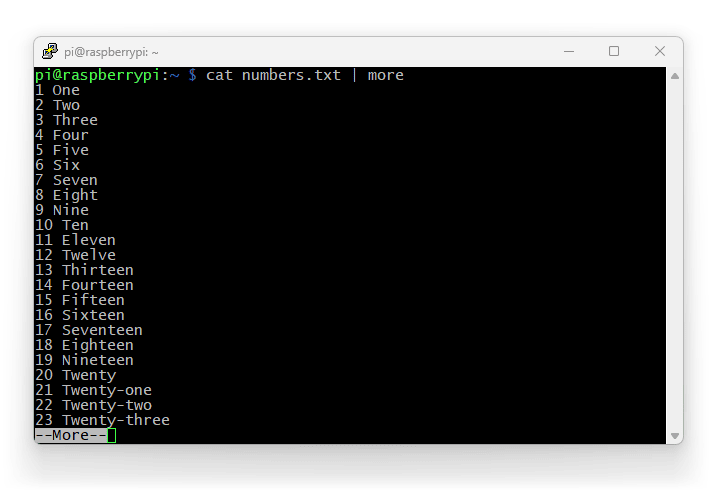
Commands such as ls or cat will attempt to display any list or file contents in the console, regardless of its size. This causes, that in the case of long strings of data, we will only see the last dozen or so lines:

If we want to view the compactness "screen by screen", just use the more function. It will stop the character transfer when, when our terminal window fills up. To continue, we press enter (the next line will be loaded) or space (load the whole next screen). Thus, sticking to the example illustrated above, instead of cat numbers.txt we would use the command cat numbers.txt | more. We would do the same for other long lists of, texts, etc.
diff (difference)
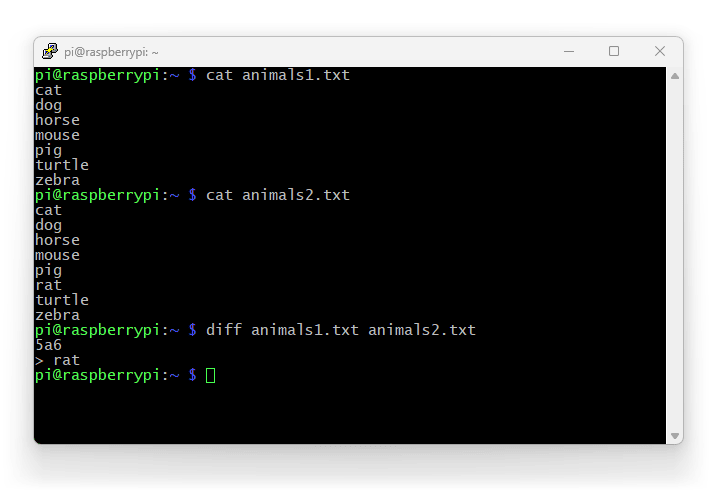
The diff command indicates the differences between two files/lists - it gives the location of the discrepancy and its content:
File system operations
It's time to look at the basic commands for creating, copy and delete files and folders.
mkdir (make directory)
A directory is created with the mkdir command. It can be created from the working folder, but also any other location (to which we have permissions), if we give its full path.
rmdir (remove directory)
Deleting a empty folder is done with the rmdir command. If, on the other hand, we want to delete the folder along with its contents...
rm (remove)
...we will use the rm command. It is used to delete both files, as well as folders. If you are deleting a folder and wish to erase the entire contents along with it, you need to use the rm -r switch (recursive), which will delete the folder along with the files contained in it, subfolders etc.
cp (copy)
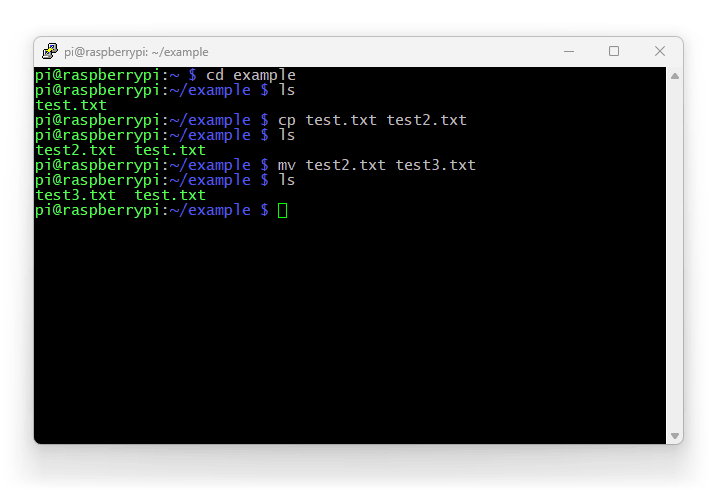
Operation of the cp command, i.e. copy, is intuitive: the first parameter indicates the source, the second is the target element.
mv (move)
Moving files with the mv command works analogously to copying, whereby if the source and destination folders are the same (e.g. in both cases we use the working directory) there will be no transfer, but changing file name.
touch
The touch command is used to create a new, empty file. If you use the name of an existing file as a parameter, its content will remain unchanged, while the modification date and last access date will be updated (hence the name "touch", ang. touch).
file
Use the file command to check the type of the file indicated in the parameter.
watch
In order to observe a file or other object in real time, we use the watch command. A periodically refreshed terminal emulator will appear on the screen. In this way, we can monitor changes occurring in the resource (e.g. watch test.txt), the contents of a folder (watch ls), etc. An alternative would be to manually, cyclically calling a given command.
Superuser, users and groups
With the knowledge we already have about manipulating files and folders, let's address the issue of users and permissions. Let's start with one of the "most famous" Linux commands:
sudo (superuser do)
Superuser, means superuser is otherwise known as administrator or root, who has virtually unlimited privileges. It should be emphasized here: they are indeed unlimited and administrative privileges should be used with extreme caution, not only for security reasons, but also because of the possibility of causing a crash. The first user, whom we create on our Raspberry Pi is automatically given permissions to run commands with administrator permissions. This is done by preceding the command with sudo.
shutdown
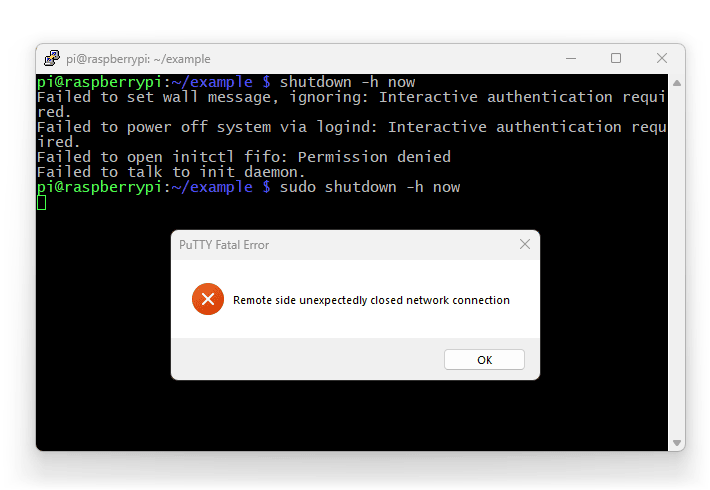
An example of a command, that only the administrator has access to, is shutdown, which is a command that safely shuts down the system and shuts down the machine. By default, it is used to schedule a shutdown at a specific time. To shut down the computer immediately we use option -h (from hour) and specify the time as now.
Thus, in its entirety, our command will look as follows: sudo shutdown -h now.
Note: if we are using a remote terminal immediately after accepting the command the connection will be closed.
su (switch/substitute user)
We use the su function to execute a command as another user. This is a useful method, especially for the administrator, such as. to test the permissions, that certain users have been granted.
useradd (user add)
To create a new user account, we use the useradd command.
passwd (password)
The newly created user account is completely empty, has neither a password, nor a home directory. The password is assigned using the passwd command, followed by the account name. We will be asked for the password and repetition in further steps. If you want to change your own password, it is enough to type the command passwd.
userdel (user delete)
Deleting a user account is done with the userdel command. Of course: to work as intended, must be run with administrator privileges.
Working with groups
User groups in Linux is a useful feature. With it, we don't have to deal with the permissions granted to individuals using the system (which would be cumbersome in the case of e.g. network shares, school, office etc.). Instead, it is enough to connect users in a group, which allows you to simultaneously control the permissions granted to all its members.
groups
By typing groups command, you will get a list of all the groups, to which our account belongs. If you want to know all the groups currently available in the system, just look in the file /etc/groups.
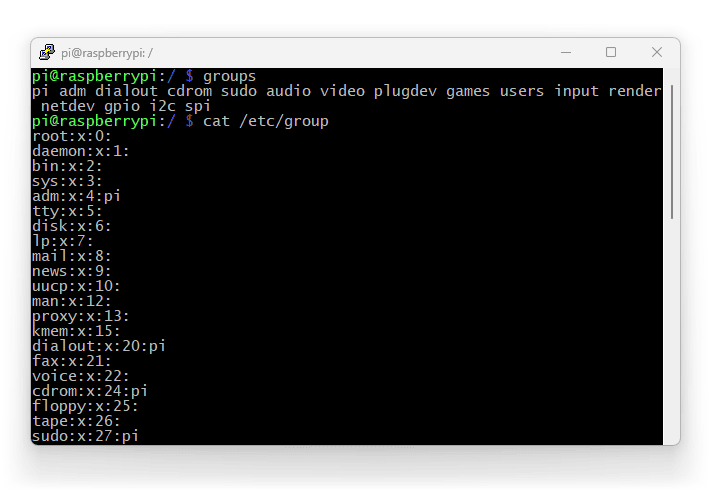
It is worth noting, that the first Raspberry Pi OS created, the user is given not only permissions for administrative actions, but also access to hardware pinouts, such as GPIO, i2C and SPI interfaces.
Other group commands
Other commands for groups, such as groupadd, groupdel (group delete), groupmod (group modify), allow you to create, modify and delete groups and their permissions. However, these are more complex administrative tasks, which we will not deal with here. In the practice of using Raspberry Pi and executing projects with its help, there is rarely a need to deal with groups.
Permissions
Permissions in Linux are very important, as they are the foundation of securing system resources. Each file and folder has a set of permissions for three types of users:
- for its owner,
- for members of the group, to which it is assigned;
- for Others.
If we run the ls command with the parameter-l (long) we will see a detailed description of the permissions for all items in the folder:

The list is divided into 9 columns. We will discuss the first one in a moment. The next ones are: number of links (this refers to, for example. number of subfolders); file owner; group owning the object; size in bytes; month, day and time of last modification; object name.
Let's take a look at the information placed at the beginning of each line. The first character specifies the type of element: - is a regular file, d is a directory (directory), l is a symbolic abbreviation (symbolic link).
The next 9 characters are divided into three groups and are a description of the permissions for: (1) owner; (2) members of the group owning the object; (3) Others users. In each block we can meet the letters: r (read) means read permission; w (write) permission to edit. The letter x (executable) will be encountered only for folders/programs/scripts and denotes executability, that is, the ability to run or explore the object.
To better understand this form of notation, let's take a look at the permissions of the file test2.txt (-rw-r--r--). In a table, these powers can be represented as follows:
| Character No | Value | ||
|---|---|---|---|
| 1 | Type | file/directory/link | - (i.e. file) |
| 2 | Owner's rights | read | r |
| 3 | write | w | |
| 4 | execution | - | |
| 5 | Rights of group members | read | r |
| 6 | record | - | |
| 7 | execution | - | |
| 8 | Rights of other users | reading | r |
| 9 | write | - | |
| 10 | execution | - | |
Thus we see, that the file can be read by anyone. Only the owner (i.e. in this case root/administrator) has the right to edit it. The file cannot be run at all (because it is not a program).
Alternatively, instead of three letters, permissions are written digitally, in the octal system:
| Number | Read | Writing | Execution |
|---|---|---|---|
| 0 | no permissions (---) | ||
| 1 | - | - | yes |
| 2 | - | yes | - |
| 3 | - | yes | yes |
| 4 | yes | - | - |
| 5 | yes | - | yes |
| 6 | yes | yes | - |
| 7 | full entitlements (rwx) | ||
chmod (change mode)
If we want to change the file permissions, we can do it with the chmod command. It takes parameters in digits (as in the table above), one digit each for: owner, group, others. If we want, for everyone to have full file permissions, we will use the command chmod 777 [object name]. To allow all users to edit the file from the previous example, its owner (in this case the administrator) must send the command chmod 777 test2.txt (note, how the string in the first column of the list has changed).

chown (change owner)
The chown command allows you to change the owner of a file:

chgrp (change group)
Analogous to chown, command chgrp is used to change the group, to which an element is assigned.
Processes
Programs and scripts running on Linux are called processes. There are many commands to manage them.
top (table of processes)
The top command displays a list of active processes on the system. In the table for each process you will find such information, such as ID number, owner name, amount of memory consumed and computing power consumed.
htop (Hisham's table of processes)
A more readable version of the top command (written by Hisham H. Muhammad) is called htop. It actually presents the same data, however in a more readable form. It also gives the user a number of additional options, such as the ability to sort, filtering etc.

kill
Linux gives us the ability to immediately shut down any program (even if it causes the system to crash). This is done with the kill command, followed by the identification number (PID) of the process (the digits, which we see in the first column of top/htop).
systemctl (system control)
The systemctl command allows you to start/stop processes/services, as well as display a list of resources used by the system. This is a useful tool that allows you to, for example. reset the software after modifying its configuration files - however, the use of this command goes far beyond the objectives of our short tutorial.
Working with the network
Since Linux is a system, which from the beginning was created with networking in mind, contains many commands that make it easy to configure connections to the Internet, Ethernet and computers.
ping
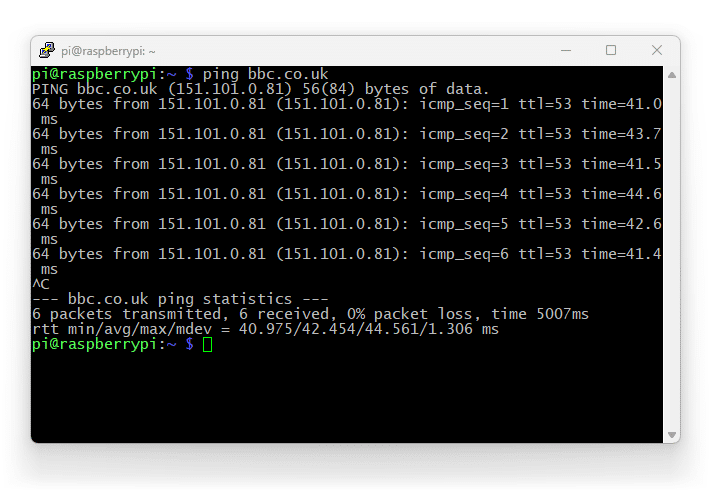
The most basic command for testing connections: it sends a control packet to the specified address, and then displays the time it takes to receive a response (if any). If you do not indicate a limit, packets will be sent cyclically, until interrupted using the combination Ctrl+C.
ifconfig (interface configuration)
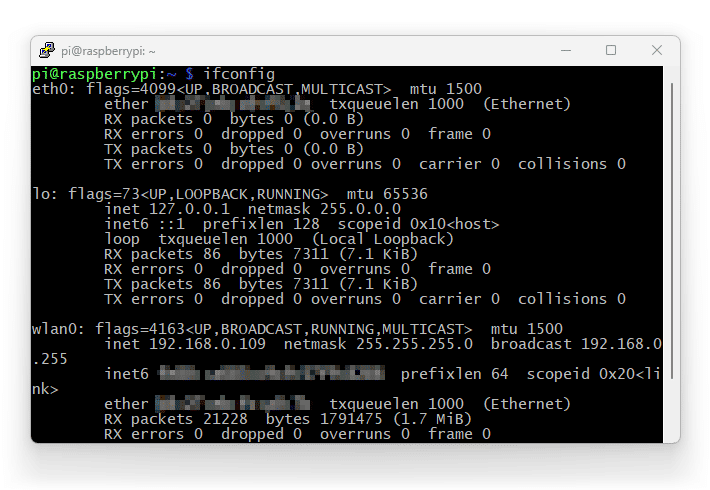
To see details of the operation of all available network interfaces, that our computer has (including virtual ones, like VPN), we use the command ifconfig.
netstat (network statistics)
To display information about network connections active on the system, we use the netstat command. This is a useful diagnostic tool. Using switches, we can get information about the operation of interfaces (-i), all the open ports (-I), TCP connections (-t) etc.
traceroute (trace route)
Other useful diagnostic tools. After specifying the name of the server (e.g. traceroute google.com) you will get a list of network points, which, on the way to the destination, the outgoing packet from our computer overcomes. In this way we can find out, where delays are occurring and whether any communication problems were caused in our infrastructure.
wget (world wide web get)
This, that we are working in text mode, does not at all mean, that we have to give up the benefits of the Internet. Even in such a basic version Linux allows us to download files from the network. This is done by using the wget command. You just need to enter a specific file address. It will be downloaded to the working folder. The following example demonstrates downloading a single document from the github repository:

curl (client url)
Even more possibilities are given to us by the curl command. It is used to transfer data (including files) using various protocols (HTTP, FTP, SMTP etc.). The parameter -X allows you to select the transfer method (e.g. to a form using the POST method).
scp (secure copy)
If you are transferring confidential data over the network, a better choice would be the scp command, which uses the encrypted protocol SSH for transmission. Such transmission is performed by.in. when backing up personal files.
Transfer Multisort Elektronik (TME) is one of the world’s largest global distributors of electronic components, electrotechnical parts, workshop equipment, and industrial automation. The catalog includes over 1,500,000 products from 1,300 leading manufacturers. TME’s modern logistics centers in Łódź and Rzgów (Poland), with a combined area of over 40,000 m², ship nearly 6,000 packages daily to customers in more than 150 countries.
TME also invests in the development of knowledge and skills of young engineers and electronics enthusiasts through the TME Education project, and supports the tech community by organizing the TechMasterEvent series, promoting innovation and experience exchange.