Faster way to set up Raspberry Pi
Faster way to set up Raspberry PiDate of publication: 16-05-2025 🕒 4 min read
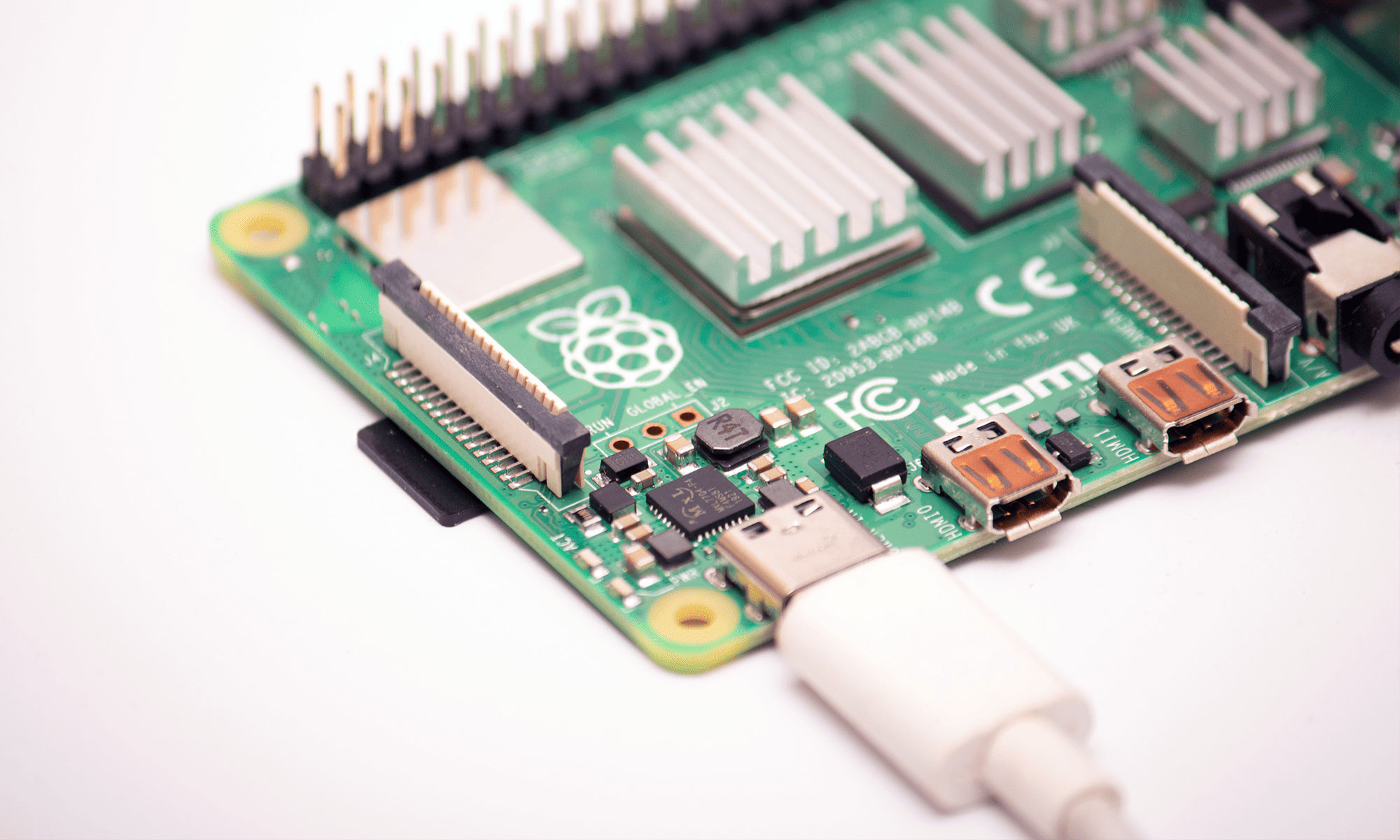
One of the main advantages of Raspberry Pi is being easy to get started: its developers have taken many steps to make the experience as smooth as possible.
Since the launch of the first model, they’ve equipped the operating system with a GUI (Graphical User Interface), created a wizard (an interface that leads the user through the installation process) to get Raspberry Pi set up for the first time, and published many books and magazines to keep the users up to date with all the technical tips they need to know.
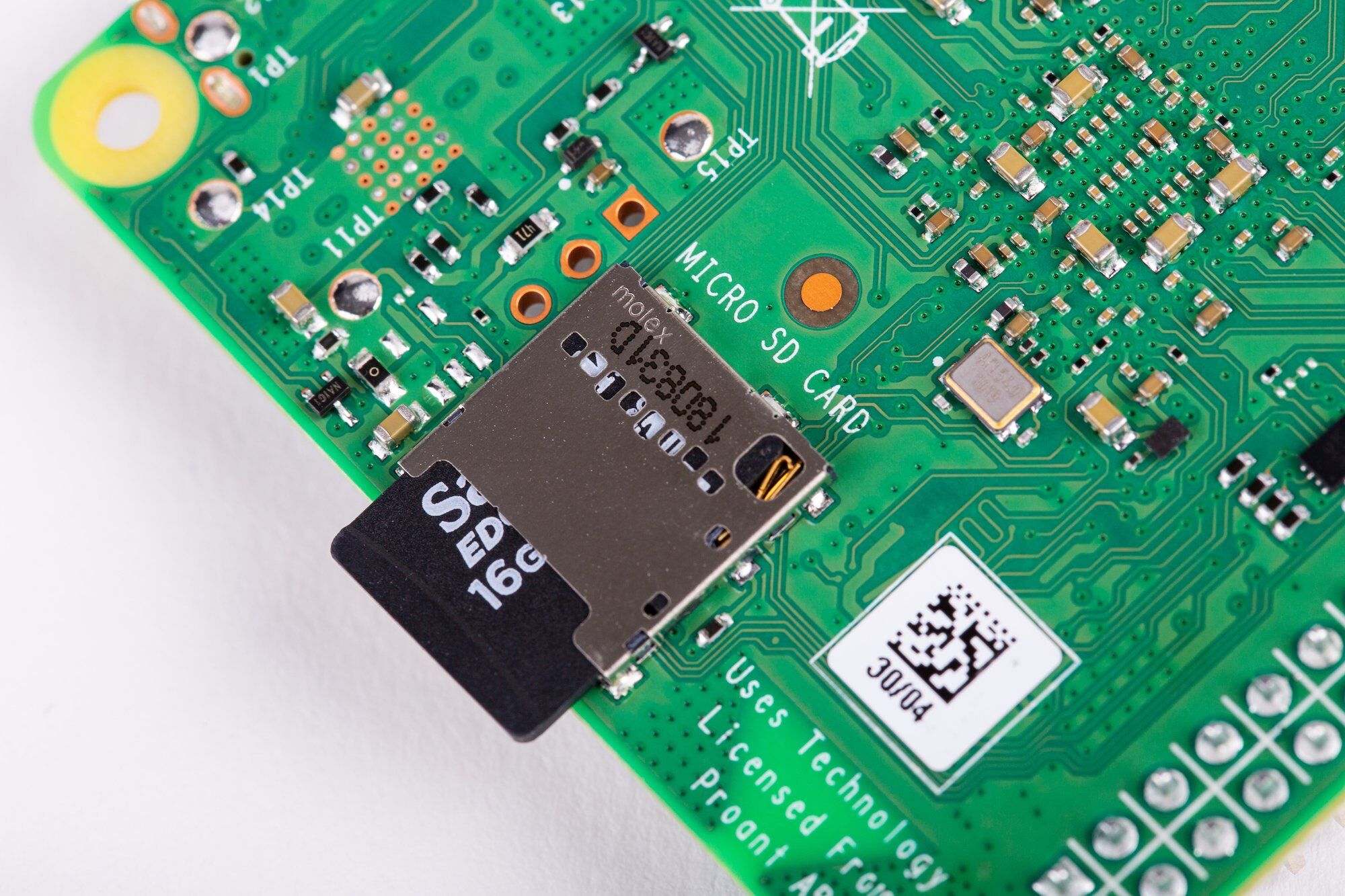
However, one thing that has always been a bit problematic, despite all those steps taken towards the ease of use, is programming microSD cards with the Raspberry Pi system. The main source of the issue are differences between the most popular operating systems: Windows, macOS and Linux. Each of them uses a different method of accessing the SD card and that can complicate things. Another potential challenge might be knowing where to find the latest system image and how to transfer it to the SD card. This part can be confusing, especially for new Raspberry users, unless they have previously used some image-flashing programs (e.g. Etcher). Because of that, Raspberry Pi developers suggest the best option is buying a pre-loaded NOOBS SD card from an approved Raspberry Pi reseller to ensure no additional problems.
But what can you do if you would like to re-image a card you already have?
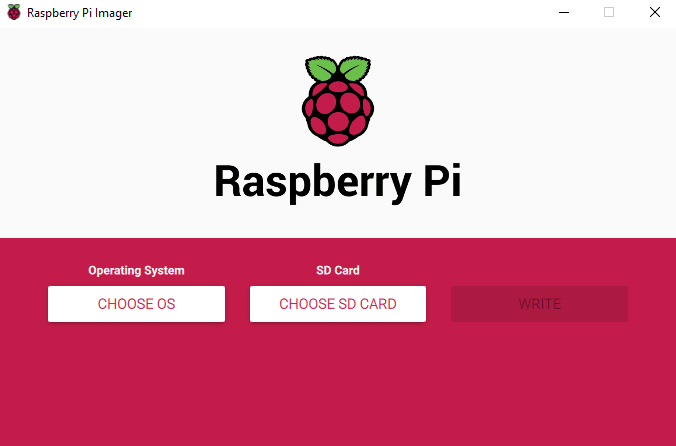
Luckily, this issue has been taken care of by the developers and if you’re a Raspberry Pi user, you can download Raspberry Pi Imager, a utility software available for Windows, macOS and Ubuntu. Here is what the whole process looks like:
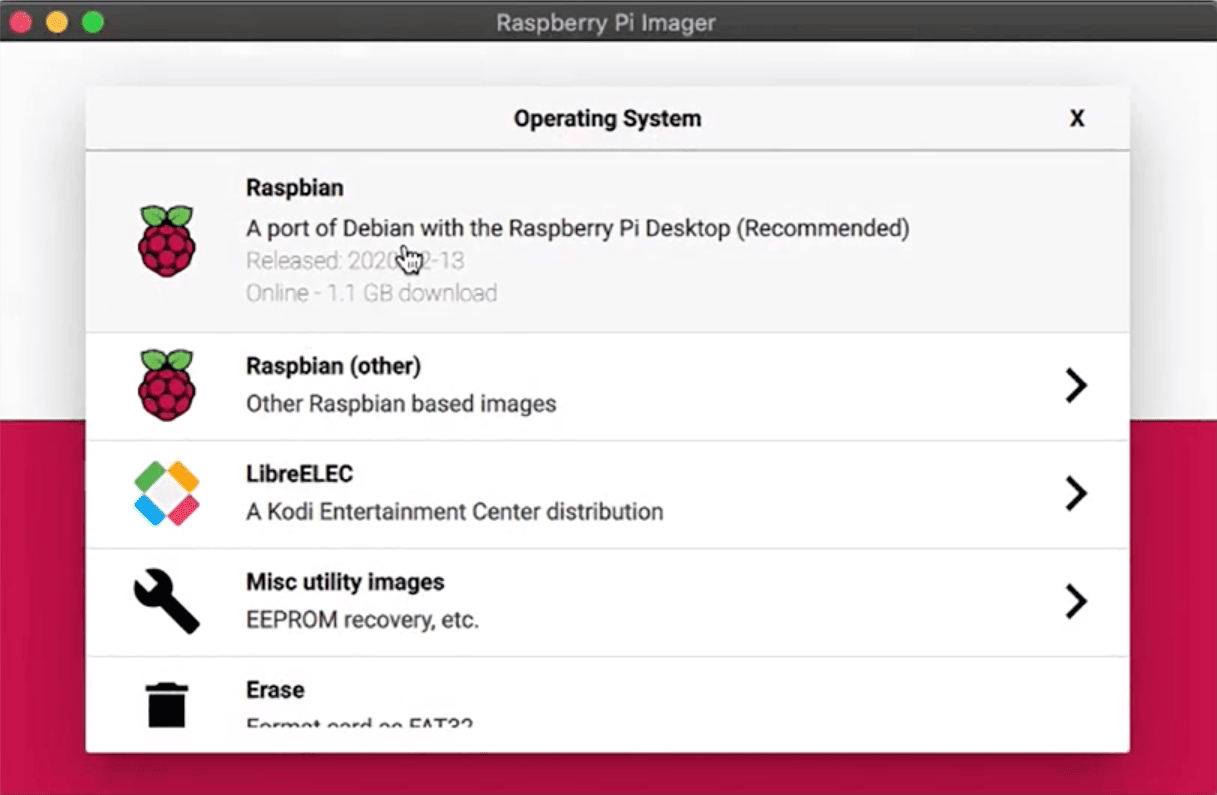
First, the software downloads a .JSON file from the Raspberry website with a list of all current download versions, so that you can make sure your program is up-to-date.
Then, you just need to select an operating system of your choice and Raspberry Pi Imager will read the file from the website and write it directly to the card. This is all you need to do and the process is significantly quicker than the standard way of doing it, which required the user to first write the downloaded file on a hard drive and then read it back and write it to the SD card separately.
Another huge advantage of using this software is its another function: it also caches the operating system image and saves its local copy on your computer. Thanks to this, you don’t need to download the file again if you want to program more SD cards, which speeds up the process once again.
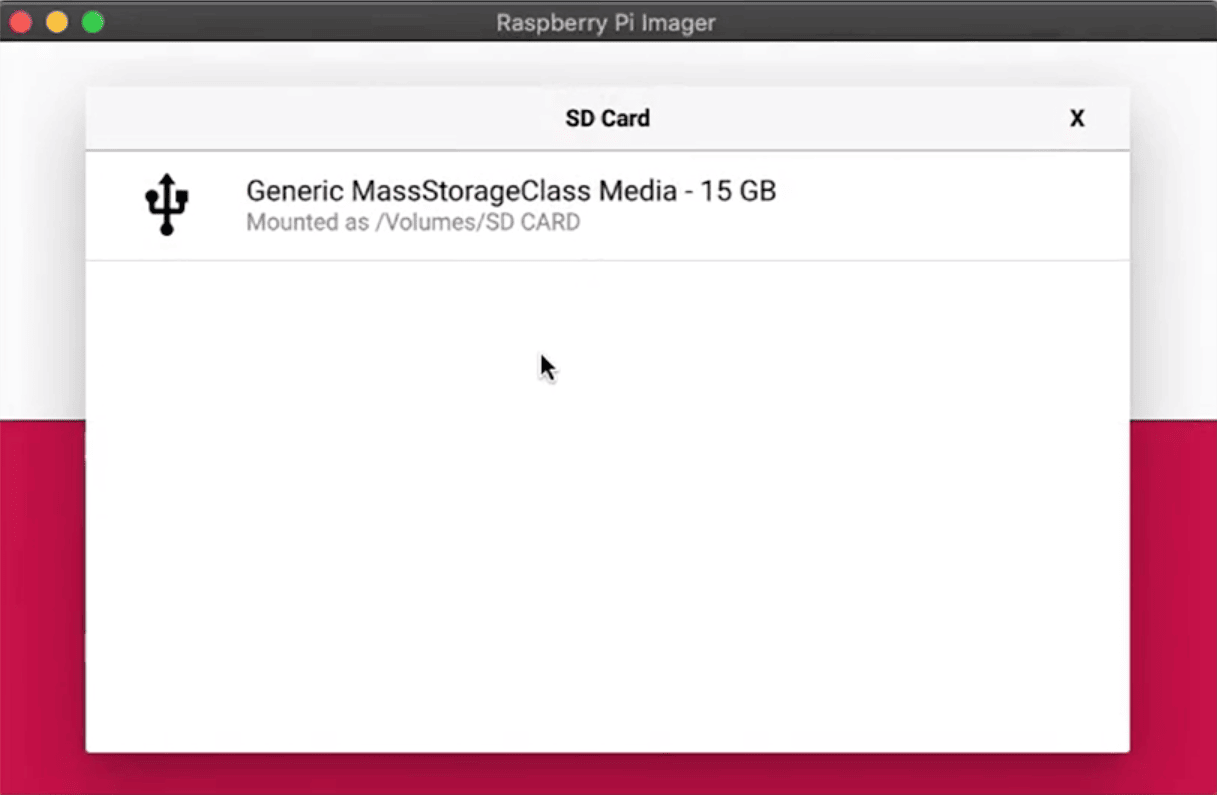
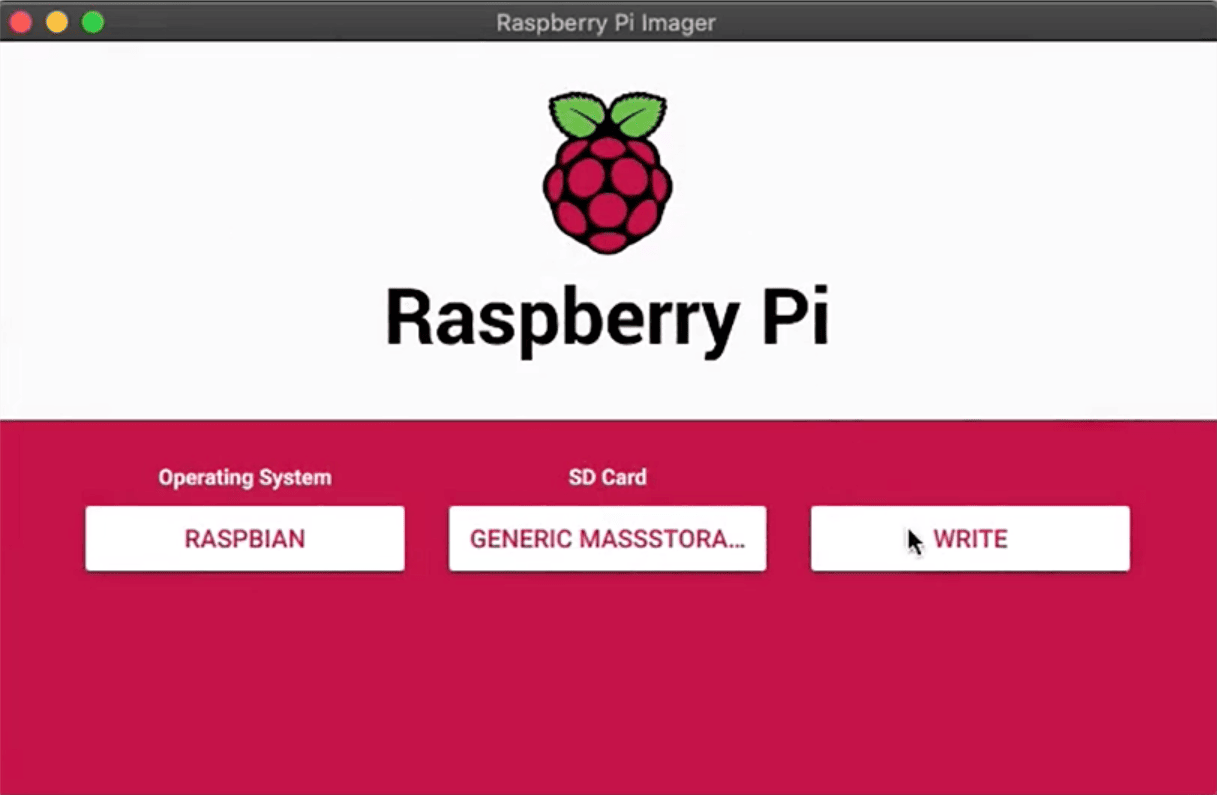
But possibly the best thing about Raspberry Pi Imager is the fact it’s fully open source and can be downloaded from Raspberry’s downloads page. Check it out and see how easy it is to get started with Raspberry Pi!
Note: This article is based on original content from: https://www.raspberrypi.com/news/raspberry-pi-imager-imaging-utility/
Transfer Multisort Elektronik (TME) is one of the world’s largest global distributors of electronic components, electrotechnical parts, workshop equipment, and industrial automation. The catalog includes over 1,500,000 products from 1,300 leading manufacturers. TME’s modern logistics centers in Łódź and Rzgów (Poland), with a combined area of over 40,000 m², ship nearly 6,000 packages daily to customers in more than 150 countries.
TME also invests in the development of knowledge and skills of young engineers and electronics enthusiasts through the TME Education project, and supports the tech community by organizing the TechMasterEvent series, promoting innovation and experience exchange.